
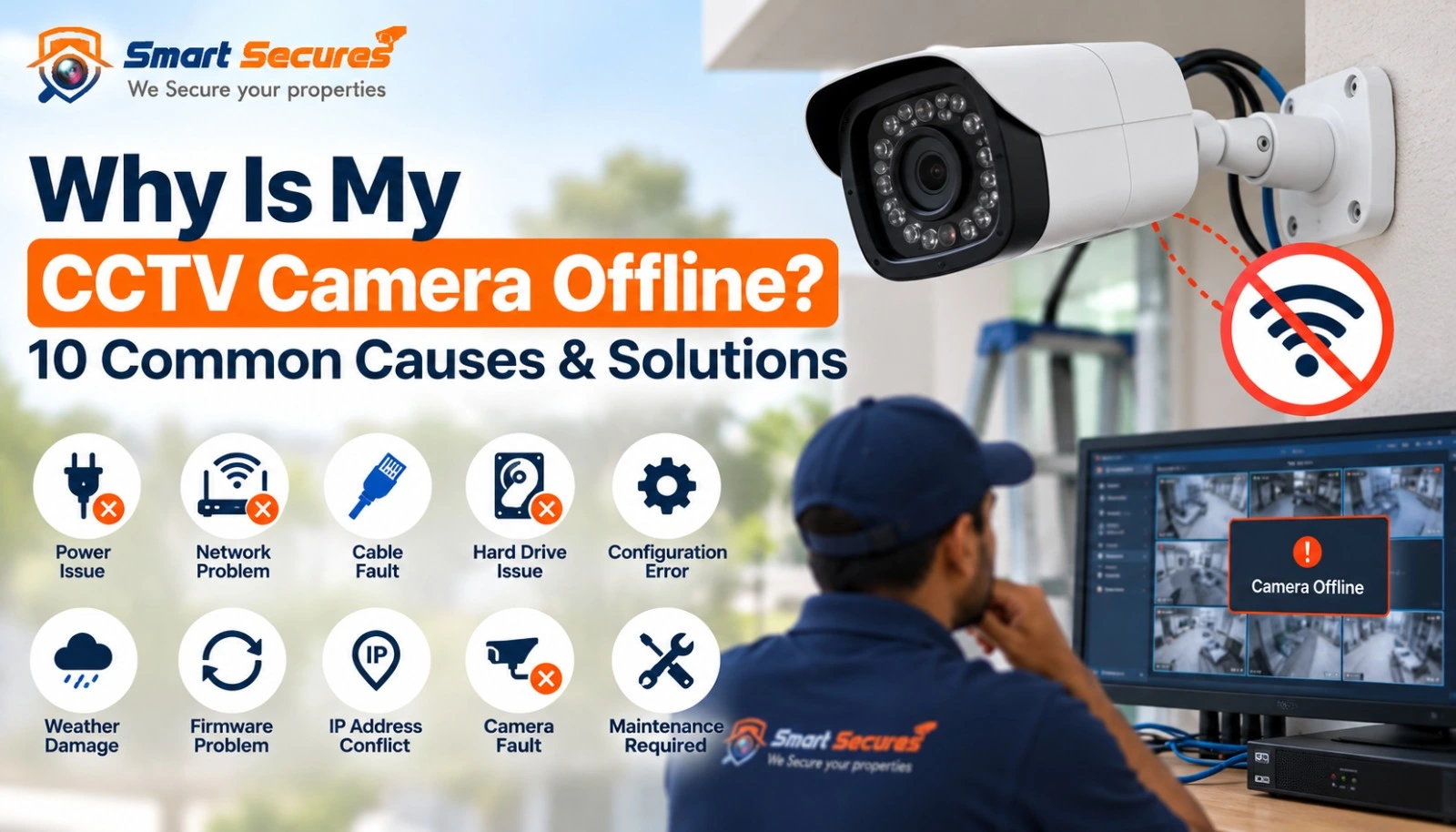
A CCTV camera usually goes offline because of a power problem, a damaged network cable, a PoE (Power over Ethernet) failure, a router or network issue, an incorrect IP address, a weak Wi-Fi signal, or a fault in the camera itself. In most cases, you can identify the cause within a few minutes by checking power, cables, and network status in that order.
"Offline" is not always the same problem, though. Your camera can show three different states, and each one points to a different fix:
- Offline — the NVR/DVR or app cannot reach the camera at all. Usually a power, cable, or network issue.
- No signal — the camera has power but is not sending a usable video feed. Often a cable, connector, or hardware fault.
- No internet/cloud connection — the camera works fine on your local network, but remote viewing on your phone fails. This points to your router or internet connection, not the camera.
Knowing which one you are dealing with saves time, because checking the wrong thing first is the most common mistake people make. Below are the 10 most common reasons a CCTV camera goes offline, followed by a step-by-step troubleshooting sequence, wired vs Wi-Fi differences, and NVR/DVR-specific guidance.
10 Common Causes of a CCTV Camera Going Offline
1. Power Supply Failure
Cause: The camera is not getting the power it needs to turn on or stay running.
Why it happens: Adapters degrade over time, especially in Hyderabads heat and humidity. Loose DC connectors, damaged power cables, or a tripped circuit can all cut power without any obvious sign until you check the camera itself.
How to check: Look for the cameras status LED (if it has one). Check the adapter for a warm or burning smell, and inspect the DC barrel connector for looseness or corrosion.
How to fix it: Reseat the power connector firmly. Test the adapter on another camera, or test a known-good adapter on the affected camera, to isolate the fault. Replace a failing adapter rather than repairing it.
When professional help is needed: If the camera is on a shared power supply box (common in multi-camera setups) and several cameras are affected together, a technician should check the distribution box and wiring rather than individual adapters.
2. Loose or Damaged Cable
Cause: The Ethernet or coaxial cable connecting the camera has come loose, been chewed by rodents, or degraded from sun and moisture exposure.
Why it happens: Outdoor cable runs are exposed to UV rays, rain, and temperature swings. Poor-quality connectors or unsealed junctions are common failure points, especially in installations that were not professionally sealed.
How to check: Inspect the cable along its visible length for cuts, kinks, or water ingress at joints. Wiggle the connector at both ends gently while watching the NVR screen for a flicker.
How to fix it: Re-terminate damaged connectors, replace any section with visible cable damage, and reseal outdoor joints with proper weatherproof connectors instead of tape.
When professional help is needed: If the cable run is inside a wall, conduit, or ceiling, or if multiple cameras on the same cable path are affected, do not attempt a DIY fix — call a technician to trace and repair the line safely.
3. Network or Router Problems
Cause: The camera has power but can not communicate with your NVR, app, or local network.
Why it happens: Routers can freeze, restart automatically after a firmware update, run out of DHCP addresses, or have a port temporarily disabled. ISP outages also cause this, even though the camera and NVR are working normally
How to check: Confirm other devices (laptop, phone) have internet. Check if the routers port lights for the camera or NVR are active. Look at the NVRs network status page.
How to fix it: Restart the router and wait two minutes before testing again. Confirm the cameras IP address has not changed. If your ISP connection is down, this is outside the camera system entirely — contact your internet provider.
When professional help is needed: If cameras go offline every time the router restarts and never reconnect on their own, a technician can set static IPs or DHCP reservations to prevent it from recurring.
4. PoE Switch or PoE Injector Issue
Cause: Cameras using Power over Ethernet lose both power and data if the PoE switch or injector fails or is overloaded.
Why it happens: Each PoE switch port has a wattage limit. Adding cameras beyond its rated capacity, or a single failing port, can cause one or more cameras to drop without warning.
How to check: Look at the PoE switchs port LEDs — a dead or blinking-red light usually indicates a fault. Try moving the affected cameras cable to a different port on the switch.
How to fix it: If moving the camera to another port restores it, the original port or the switch itself is failing and should be replaced. Check the switchs total PoE budget against the number and type of connected cameras.
When professional help is needed: For systems with 8 or more PoE cameras, sizing and load-balancing the switch correctly requires technical calculation — this is best left to an installer.
5. IP Address Conflict
Cause: Two devices on the same network are assigned the same IP address, so the NVR can not reach the camera reliably.
Why it happens: This is common after a router reset, a firmware update, or when a camera was set up with a static IP that later gets reassigned to another device by DHCP.
How to check: Open the NVRs device list or a network scanning tool and look for duplicate IP entries.
How to fix it: Assign the camera a unique static IP address outside your routers DHCP range, or set up a DHCP reservation so it always receives the same address.
When professional help is needed: If you are not familiar with network settings or IP ranges, this is a quick fix for a technician and reduces the risk of misconfiguring the whole network.
6. Weak Wi-Fi Signal for Wireless Cameras
Cause: A wireless (Wi-Fi) CCTV camera loses connection because the signal at its location is too weak or unstable.
Why it happens: Concrete walls, distance from the router, and interference from other 2.4GHz devices all reduce Wi-Fi strength. Wireless cameras are more sensitive to this than wired ones.
How to check: Check the signal strength indicator in the cameras app. Move a phone to the cameras exact location and check the Wi-Fi bars there.
How to fix it: Move the router closer, add a Wi-Fi extender or mesh node near the camera, or switch the camera to the 2.4GHz band if it supports dual-band, since 2.4GHz travels further through walls than 5GHz.
When professional help is needed: For larger homes or commercial spaces where several wireless cameras keep dropping, a technician can plan extender placement or recommend switching to a wired setup for reliability.
7. NVR/DVR Connectivity Problems
Cause: The recorder itself — not the camera — has lost network connection, frozen, or has a configuration issue.
Why it happens: NVRs and DVRs can lock up after long uptimes, lose their network settings after a power cut, or have a failing internal component affecting multiple camera channels at once.
How to check: If every camera shows offline at the same time, the fault is almost always the NVR/DVR or its network connection — not the individual cameras.
How to fix it: Restart the NVR/DVR. Check that its network cable is firmly connected and its IP settings have not changed after a power outage.
When professional help is needed: If the NVR restarts but cameras still do not reconnect, or if this happens repeatedly, the recorder may need a firmware update or hardware check by a technician.
8. Camera Hardware Failure
Cause: An internal fault in the camera — such as a failed image sensor, damaged circuit board, or moisture ingress — stops it from working.
Why it happens: Camera electronics degrade with age, power surges, or water damage in poorly sealed outdoor units. This is more likely in cameras older than 4–5 years or those exposed to heavy rain.
How to check: If the camera has power, a good cable, and correct network settings, but still wont come online, hardware failure becomes the likely cause by elimination.
How to fix it: There is little a homeowner can do here beyond confirming everything else is ruled out. Hardware faults usually require replacement rather than repair.
When professional help is needed: Always — a technician can confirm hardware failure with proper testing equipment and advise whether it is covered under warranty before you buy a replacement.
9. Internet or Cloud Connection Problems
Cause: The camera and NVR work fine on your local network, but remote viewing on your mobile app does not work.
Why it happens: This points to your internet connection, router port forwarding, DDNS (Dynamic DNS) settings, or the manufacturers cloud service (P2P) being temporarily down — not the camera hardware.
How to check: Try viewing the camera locally (on the same Wi-Fi network as the NVR) first. If local viewing works but the app does not when you are away from home, the issue is remote connectivity, not the camera.
How to fix it: Restart your router and check your internet plan is active. Confirm the P2P/cloud ID has not changed after an NVR reset, and re-add it in the app if needed.
When professional help is needed: Setting up port forwarding, DDNS, or troubleshooting a manufacturers cloud service outage is technical — a professional can configure this correctly and securely.
10. Incorrect Configuration, Firmware, or Network Settings
Cause: A setting inside the camera or NVR — such as an outdated firmware version, wrong network mode, or an accidental configuration change — is preventing a stable connection.
Why it happens: Firmware updates sometimes reset custom settings. A setting changed during troubleshooting, or a factory reset performed without reconfiguration, can also cause this.
How to check: Compare the cameras current settings (IP mode, port numbers, protocol) against what your NVR expects.
How to fix it: Update the camera and NVR firmware to the latest stable version from the manufacturer, and reconfigure network settings carefully, one change at a time.
When professional help is needed: Firmware updates carry a small risk of bricking a device if interrupted — for business or multi-camera systems, it is safer to have a technician handle this.
How to Fix an Offline CCTV Camera: Step-by-Step
Work through these steps in order. Most offline camera problems are resolved within the first five steps.
- 1. Check the cameras power — confirm the LED is on and the adapter is firmly connected.
- 2. Check all cables — inspect for damage, looseness, or water ingress along the run.
- 3. Check the NVR/DVR status screen — see if only one camera, several, or all channels are affected.
- 4. Check your router and internet — confirm other devices online and the router is responding.
- 5. Restart the camera — unplug it for 30 seconds, then reconnect.
- 6. Restart the NVR/DVR and router — power-cycle both, waiting for a full reboot before testing.
- 7. Check the cameras IP address — look for conflicts or an address outside the expected range.
- 8. Check the PoE connection — try a different port or cable if the camera is PoE-powered.
- 9. Review the cameras configuration — confirm network mode, protocol, and firmware version.
- 10. Contact a professional if the camera is still offline after these steps.
Wired vs Wi-Fi CCTV Troubleshooting
Troubleshooting differs depending on whether your system is wired or wireless. Knowing which type you have — and how the two differ — helps you check the right things first. If you are weighing this for a new installation, our comparison of wired and wireless CCTV cameras covers the trade-offs in more depth.
Wired CCTV Cameras
Check these in order for wired systems:
- Power — adapter, DC connector, or PoE port
- Ethernet cable — physical damage, loose connectors, water ingress at joints
- PoE — switch/injector port status and wattage budget
- NVR — recorder health and network status
- Network switch — port lights and overall switch health
- IP address — conflicts or incorrect static assignment
Wi-Fi CCTV Cameras
Check these in order for wireless systems:
- Wi-Fi signal strength — at the exact camera location, not just near the router
- Router health — restarts, firmware issues, overloaded connections
- Wi-Fi password/credentials — especially after a router reset or password change
- Internet connection — required for remote viewing, not for local recording
- 2.4GHz vs 5GHz compatibility — most CCTV cameras only support 2.4GHz, which has better range through walls
- Distance from router — signal strength drops sharply with walls and distance
- Reconnection after router changes — cameras often need to be manually reconnected after a router is replaced or its Wi-Fi name/password changes
NVR/DVR Troubleshooting: What Different Symptoms Mean
Different combinations of symptoms point to different root causes:
- One camera offline on the NVR, others fine — the issue is local to that camera: power, cable, or hardware.
- Entire NVR offline — the recorder itself has lost power or network connection; check the NVR first, not individual cameras.
- No video signal on a channel (camera appears connected but shows a blank/blue screen) — usually a cable, connector, or camera hardware fault rather than a network issue.
- Remote viewing not working, but local viewing on the NVR works fine — this is an internet, router, or cloud/DDNS problem, not a camera or NVR fault.
- Local viewing works, mobile app does not — check the apps connection method (P2P/cloud ID vs direct IP) and confirm your internet connection is active.
Quick Troubleshooting Table
| Problem | Possible Cause | Quick Check | Solution |
|---|---|---|---|
| One Camera Offline, Others Fine | Power, cable, or camera fault | Check cameras LED and cable | Reseat power/cable; replace if damaged |
| All Cameras Offline at Once | NVR/DVR or router failure | Check NVR network status page | Restart NVR and router |
| Camera Online but Blank/Blue Screen | Damaged cable or hardware fault | Inspect cable and connectors | Replace cable; if unresolved, check hardware |
| Local Viewing Works, App Does not | Internet or cloud/DDNS issue | Test internet on another device | Restart router; re-check cloud ID in app |
| Wireless Camera Keeps Disconnecting | Weak Wi-Fi signal | Check signal strength at camera location | Move router closer or add a Wi-Fi extender |
| Camera Offline After Power Cut | IP conflict or settings reset | Check camera IP in NVR device list | Reassign static IP or DHCP reservation |
| PoE Camera Not Powering On | PoE switch/injector fault | Check port LED; try another port | Replace faulty port or switch |
| Camera Offline After Router Restart | Camera did not reconnect automatically | Restart the camera itself | Power-cycle camera; set static IP to prevent repeat |
When Should You Call a CCTV Professional?
Basic troubleshooting resolves most offline camera issues. But some situations are best handled by a trained technician:
- Multiple cameras are offline at the same time
- A camera keeps disconnecting even after a restart
- You suspect a PoE or network configuration problem
- Cables are damaged inside walls, conduits, or ceilings
- The NVR itself shows signs of failure
- You suspect camera hardware failure and need a warranty check
- Remote viewing has never worked correctly since installation
- You are managing a larger commercial CCTV system with several channels down
- The same problem keeps coming back despite fixes
If you are dealing with a recurring issue, it is also worth checking your CCTV warranty and AMC coverage — many connectivity and hardware faults are covered under an existing plan, which can save you a service call-out fee.
For homes, offices, and businesses in Hyderabad, Smart Secures offers diagnostic visits and ongoing maintenance support for exactly these situations. Our technicians can trace network faults, replace failing hardware, and reconfigure systems so the same problem does not keep recurring — whether it is a single home camera or a multi-channel commercial IP camera setup.
Note on placement: The article above includes 5 of these 7 links placed naturally in the body. Two additional links (DVR vs NVR, AMC services, contact page in FAQ) are provided in this map for you to insert into the CMS version — add them into the "NVR/DVR Troubleshooting" section and the final FAQ answer respectively, keeping one link per paragraph and no repeated anchors, as shown below:
- In the NVR/DVR Troubleshooting section intro, add: "...if you are unsure whether you have a DVR or NVR, our guide on DVR vs NVR differences explains the distinction."
- In the FAQ answer for "When should I call a CCTV technician?", add: "...you can get in touch with our team for a diagnostic visit."
- In the closing paragraph, add reference to AMC: "...our ongoing maintenance support plans catch these issues before they cause downtime."
