
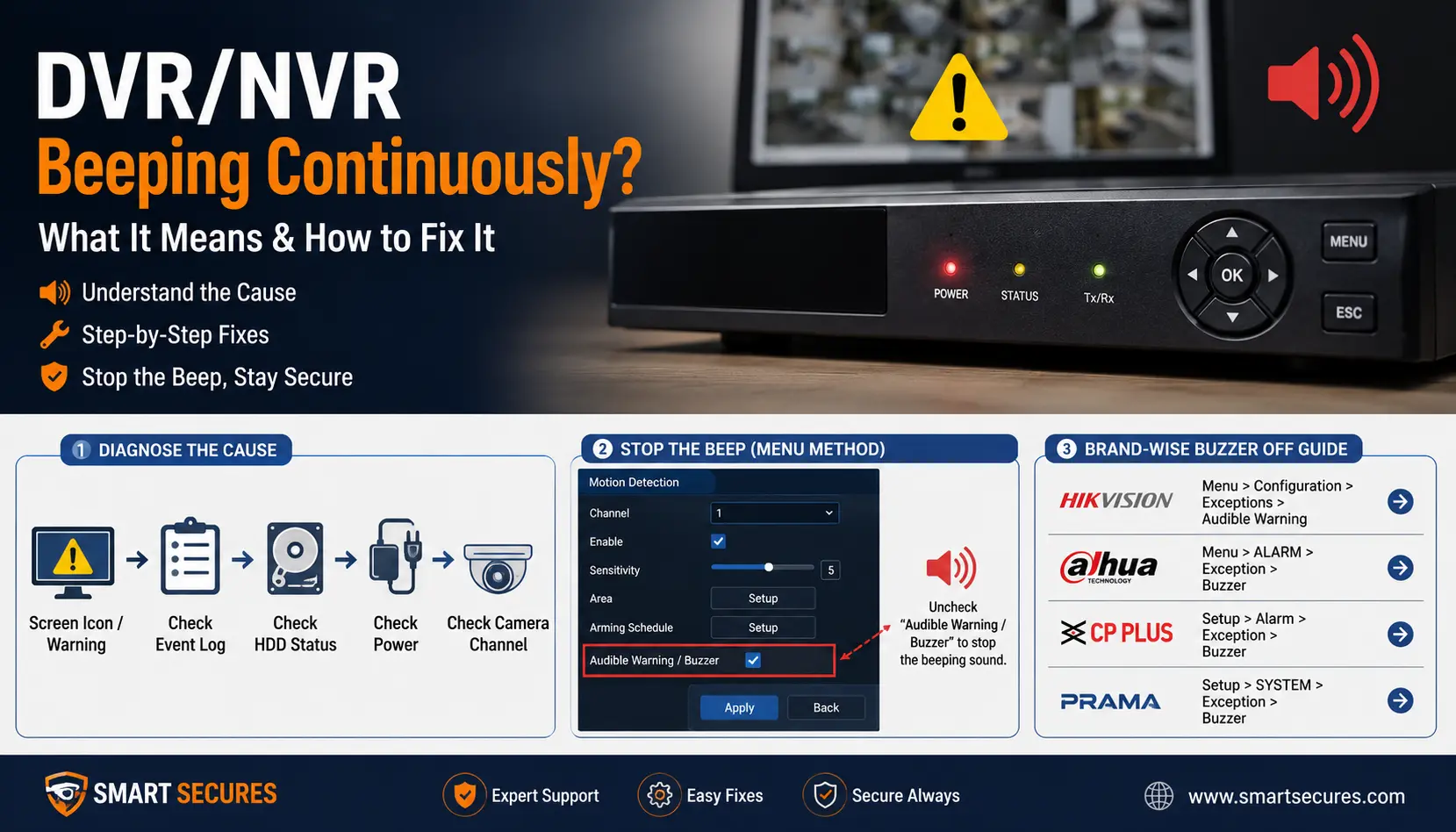
A DVR or NVR that beeps continuously is almost never broken by itself — it is telling you something. The buzzer is an internal alarm that trips when the recorder detects a problem it thinks you need to know about: a failing or disconnected hard drive, a power supply issue, lost video from a camera, or a triggered motion or alarm rule.
In most cases you can identify the cause from the recorder's on-screen alert or event log within a couple of minutes, and silence it permanently once the underlying issue is fixed.
This guide walks through every common cause of continuous DVR/NVR beeping, how to diagnose which one you have, how to fix it, and how to turn the buzzer off on the most popular brands — Hikvision, Dahua, Swann, Zosi, Lorex and Q-See.
Why Continuous Beeping Matters
Every DVR and NVR has a built-in buzzer wired to its own diagnostic system. It only sounds when the recorder detects a specific condition — a hard drive it can no longer read from, a power rail that is not stable, a camera that has gone dark, or a motion/alarm rule you configured yourself. It is not random, and it is not a sign the unit is simply "broken."
Treat the beeping as an early warning rather than an annoyance to mute. Diagnosing it correctly the first time takes a few minutes and can save you from silently losing footage later.
The 5 Most Common Causes
A continuously beeping recorder is almost always caused by one of these five things:
| Cause | How It Sounds | Typical Trigger |
|---|---|---|
| Hard drive error | Steady, repeating beep, often with an on-screen HDD warning icon | Drive not detected, unformatted, corrupted, or failing |
| Power supply problem | Long, continuous beep, sometimes with no display or lights at all | Weak or damaged power adapter, insufficient wattage, loose connection |
| Video loss / camera disconnect | Intermittent beep tied to a specific channel losing signal | Damaged cable, disconnected camera, camera power failure |
| Motion or alarm trigger | Short beeps at random intervals, tied to activity in view | Buzzer enabled under motion detection or alarm linkage settings |
| Storage full | Periodic beep alongside a "disk full" notification | Overwrite/recording settings misconfigured, or drive nearing capacity |
Short, occasional beeps are usually a motion or event alert. A long, uninterrupted beep, especially paired with a blank screen, is more often a power or hard drive failure and deserves faster attention.
How to Diagnose the Cause in Under 5 Minutes
- Check the screen first. Most DVRs and NVRs display a small warning icon (hard drive, no signal, or exclamation mark) in a corner of the live view when the buzzer is active. That icon tells you exactly which system triggered the alarm.
- Open the event or alarm log. Go to
Menu > Info > Log(menu names vary slightly by brand) and filter for the last hour. Look for entries like "HDD Error," "Video Loss," "Disk Full," or "IPC Offline." - Check the hard drive status. Under
Menu > Storage > HDD ManagerorDisk Management, confirm the drive shows as "Normal." If it reads "Unformatted," "Abnormal," or is missing entirely, that is your cause. - Look at the power indicator. If the front panel light is off or flickering and the unit will not fully boot, suspect the power adapter rather than software settings.
- Check each camera channel. A black screen or "No Signal" message on one channel points to a cable, connector, or camera-side power fault rather than a recorder fault.
Fixing Each Cause
1. Hard Drive Errors (Most Common Cause)
This is the single most frequent reason a DVR beeps non-stop. It usually means the recorder cannot communicate reliably with its hard drive.
- Reseat the SATA and power cables inside the unit (unplug the recorder first).
- If the drive shows as "Unformatted," format it from
Menu > Storage > HDD Manager. Formatting erases existing footage, so note that before proceeding. - If the drive shows "Abnormal" after a reseat and format attempt, the drive itself may be failing. Surveillance recorders need drives rated for 24/7 read/write cycles — a standard desktop drive will fail faster and trigger repeated alarms. See our guide to choosing the right HDD size and type before replacing one.
- If the recorder still will not recognize any drive, the SATA port or power rail on the mainboard may be at fault, which typically needs professional repair or replacement.
2. Power Supply Issues
A continuous beep with no picture and an unresponsive power button almost always points to insufficient or failed power.
- Confirm the power adapter matches the recorder's voltage/amperage rating — using the wrong adapter is a common cause after a replacement purchase.
- Feel the adapter brick; if it is noticeably warm or hot, it may be failing.
- Try a different wall outlet to rule out the outlet itself.
- If the unit still will not power on with a known-good adapter, the recorder's internal power supply may need servicing — avoid opening the case yourself unless you are comfortable working with electronics.
3. Video Loss on a Camera Channel
If the beeping lines up with one specific channel going black:
- Check the physical cable and connectors at both the camera and recorder ends.
- Confirm the camera has power (a dead LED usually means no power reaching it).
- Swap the cable or port with a known-working channel to isolate whether the fault is the cable, the port, or the camera itself.
4. Motion Detection or Alarm Buzzer
If nothing looks wrong but the recorder still beeps every time something moves in frame, the buzzer is simply doing its job as configured.
- Go to
Menu > Camera > Motion Detection(orAlarm > Motion) for each channel and uncheck Buzzer under the linkage/trigger actions. - If you still want alerts without the noise, keep app push notifications or email alerts enabled and only disable the audible buzzer.
- Repeat the same steps under
Alarm > Exceptionfor HDD, network, and video-loss triggers if you want to mute those separately.
5. Storage Full
- Check whether overwrite/loop recording is enabled under
Menu > Storage > Schedule— with it on, the oldest footage is deleted automatically as new footage is recorded, which should stop the alarm from recurring. - If overwrite is intentionally off (for compliance or evidence-retention reasons), you will need to archive and clear footage manually or add storage.
How to Turn Off the Buzzer by Brand
The buzzer/audible-warning toggle lives in a slightly different menu on each brand, but the logic is the same everywhere: find the alarm or exception settings and uncheck "Buzzer."
- Hikvision:
Configuration > Event > Basic Event > Motion Detection(orException), then uncheck Audible Warning for each trigger type. - Dahua:
Setup > Event > Video Detection, then under Trigger uncheck Buzzer for motion and each exception type. - Swann: In SwannView Plus or on-device, go to
Camera Settings > Motion Detection, open Linkage Action, and untick Audible Warning. Also checkConfiguration > General— a mismatched CVBS video standard (NTSC vs. PAL) can itself trigger beeping. - Zosi:
Menu > Alarm > MotionandMenu > Alarm > Exception, uncheck Buzzer under each. - Lorex:
Main Menu > Alarm > Motion Detect, disable the buzzer/beep option per channel. - Q-See:
System > Surveillance > Motion Detectto disable buzzer for motion, andSystem > Abnormalityto disable it per exception type (HDD error, video loss, etc.).
Important: disabling the buzzer only silences the sound — it does not fix the underlying issue. If the beeping is caused by a failing hard drive or a real video loss, muting it means you could lose footage without any warning. Diagnose and resolve the cause first, then mute only the alert types you do not need audible reminders for.
When to Call a Professional
Most continuous-beeping issues are fixable in the menu or with a hard drive swap. Consider bringing in a technician if:
- The recorder will not power on at all, even with a confirmed-good power adapter.
- The hard drive is undetectable after reseating cables and attempting a format.
- The beeping started after a storm, power surge, or liquid exposure.
- You are not comfortable opening the recorder case to check internal connections.
Frequently Asked Questions
Final Thoughts
Continuous DVR/NVR beeping is a built-in diagnostic feature, not a random malfunction. Check the on-screen icon and event log first, match the pattern to hard drive, power, video loss, or motion triggers, fix the root cause, and only mute alert types you are confident you do not need. That keeps your system quiet and your footage protected.
If a failing or undersized hard drive turns out to be the cause, read our guide to choosing the right HDD size for your DVR/NVR before you replace it. Setting up a new camera system from scratch? See our complete CCTV camera installation guide for the full setup process.
